E-Book Reader App Project
An E-Book Reader Android app in Java/Kotlin for EPUB and PDF books with font settings, highlights and library.
- Java/Kotlin
- Android Studio
- Firebase
- Remote setup included
See the project running first, then pay.
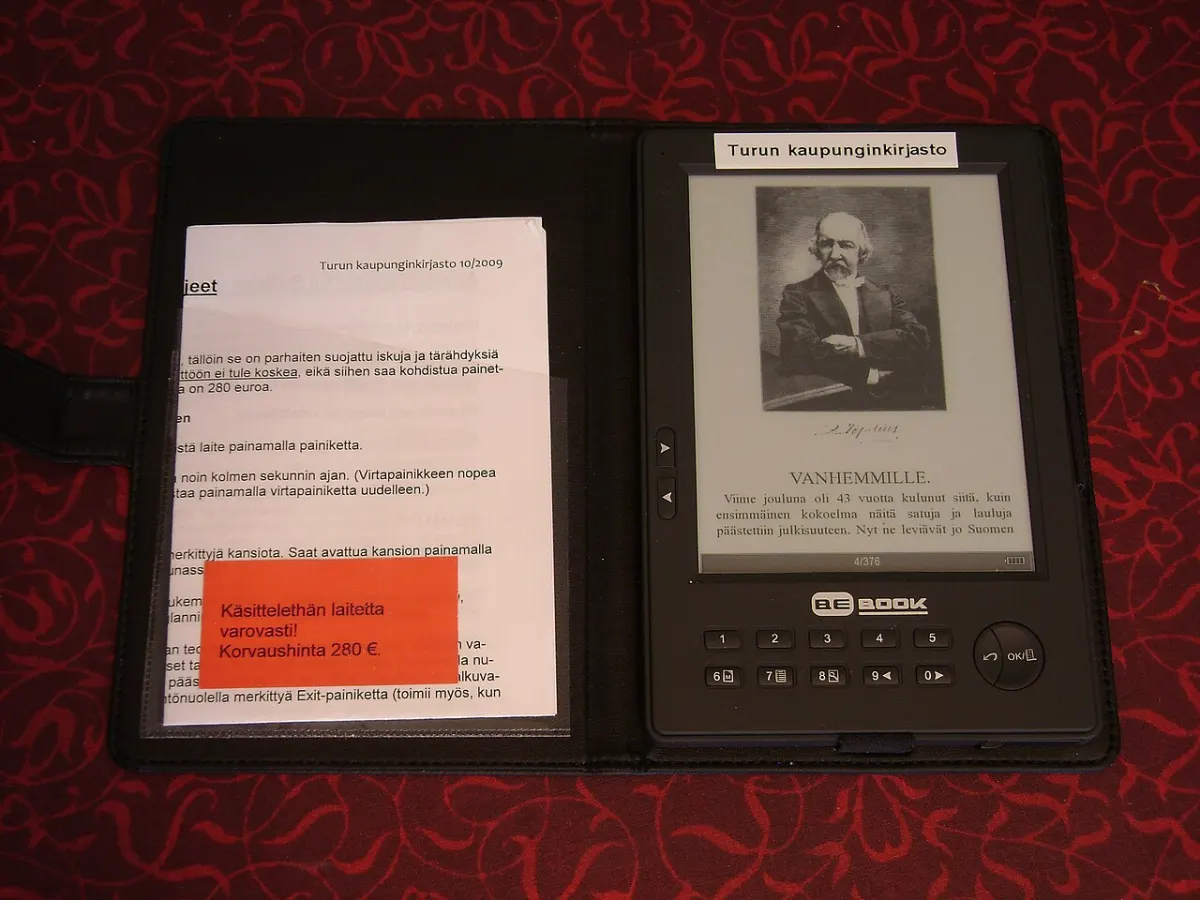
What is the E-Book Reader App?
The E-Book Reader App makes reading books on a phone comfortable. Users add EPUB and PDF books to their library, and the app remembers where they stopped.
Font size, font style, themes and brightness can be changed. Users highlight text, add notes and look up words. It is built in Android Studio with Java/Kotlin.
Key Features
Main things you can do with the E-Book Reader App.
- EPUB and PDF support
- Book library with covers
- Resume reading
- Font and theme settings
- Highlights and notes
- Bookmarks
- Dictionary lookup
- Reading stats
Project Modules
The project is divided into these modules. Each one has its own screens and tasks.
1Library
- Import books
- Covers
- Collections
- Search
2Reader
- Pages
- Fonts
- Themes
- Brightness
3Notes
- Highlights
- Notes
- Bookmarks
- Export
4Stats
- Time read
- Books finished
- Goals
- Streak
What You Get
Everything you need to submit, run and explain the project.
Complete Source Code
Full, working source code with clean folder structure and helpful comments. No locked or hidden files.
Database File
Ready-to-use Firebase database with tables and sample data, so the project runs on day one.
Project Documentation
Full project report in Word and PDF: abstract, SRS, use case, activity and class diagrams, and app screen flow, screenshots, testing and conclusion.
PPT Presentation
A 15–20 slide presentation for your seminar, review or final viva. Easy to edit with your name and college.
Remote Project Setup
We connect to your laptop with AnyDesk or Google Meet, install everything and run the project for you.
Project Explanation
A simple walkthrough of the code and flow, plus common viva questions, so you can explain it with confidence.
Project Documentation includes
- Certificate, acknowledgement and abstract
- Introduction, problem statement and objectives
- Existing system vs proposed system
- Software Requirement Specification (SRS)
- System design: use case, activity and class diagrams, and app screen flow
- Module description and screenshots
- Testing and test cases
- Conclusion, future scope and references
PPT Presentation slides
- Title and team details
- Introduction and problem statement
- Objectives
- Existing vs proposed system
- System architecture
- Modules
- Technology used
- Screenshots / demo
- Advantages and future scope
- Conclusion
Tech Stack
| Part | Technology | Used for |
|---|---|---|
| Language | Java/Kotlin | App logic and screens |
| IDE | Android Studio | Build, run and test the app |
| UI | XML layouts / Material Design | Clean, easy-to-use screens |
| Database | Firebase | Stores app data (offline or cloud) |
Software and hardware requirements
- Laptop with 8 GB RAM (recommended) and Windows, macOS or Linux
- Latest Android Studio with JDK 17
- Android phone (Android 8+) or an emulator
- Internet connection for Gradle sync and cloud features
How the E-Book Reader App Works
Open app
User opens the app and signs in or starts as a guest.
Use features
User adds data and uses the main tools of the app.
Save data
Data is saved on the phone and synced with Firebase where needed.
Alerts
The app shows reminders, notifications and simple reports.
Remote Project Setup Guidance
Not sure how to run it? We set up the project on your laptop over AnyDesk or Google Meet. No need to visit us.
-
1
Share your detailsTell us your laptop type (Windows / Mac) and a time that suits you.
-
2
Install AnyDeskInstall free AnyDesk (or join Google Meet) and share the access code.
-
3
We set it upWe install the required software, import the database and configure the Android app.
-
4
Test togetherWe run the project in front of you and check every main feature.
-
5
Understand itWe explain the code, flow and database so you are ready for your viva.
- Install Android Studio and open it once so it downloads the SDK.
- Choose File → Open and select the project folder.
- Wait for Gradle sync to finish (first time may take a few minutes).
- Add your own
google-services.jsonfile from the Firebase console (steps are in the documentation). - Connect your phone with USB debugging ON (or start an emulator) and click Run.
E-Book Reader App Images
What You Will Learn
Frequently Asked Questions
Project Details
Available- ProjectE-Book Reader App
- TypeMajor Project
- CategoryAndroid App
- LanguageJava/Kotlin
- FrameworkAndroid Studio
- DatabaseFirebase
- DocumentationReport + PPT
- SetupRemote help
- DeliverySource Code + Documentation